
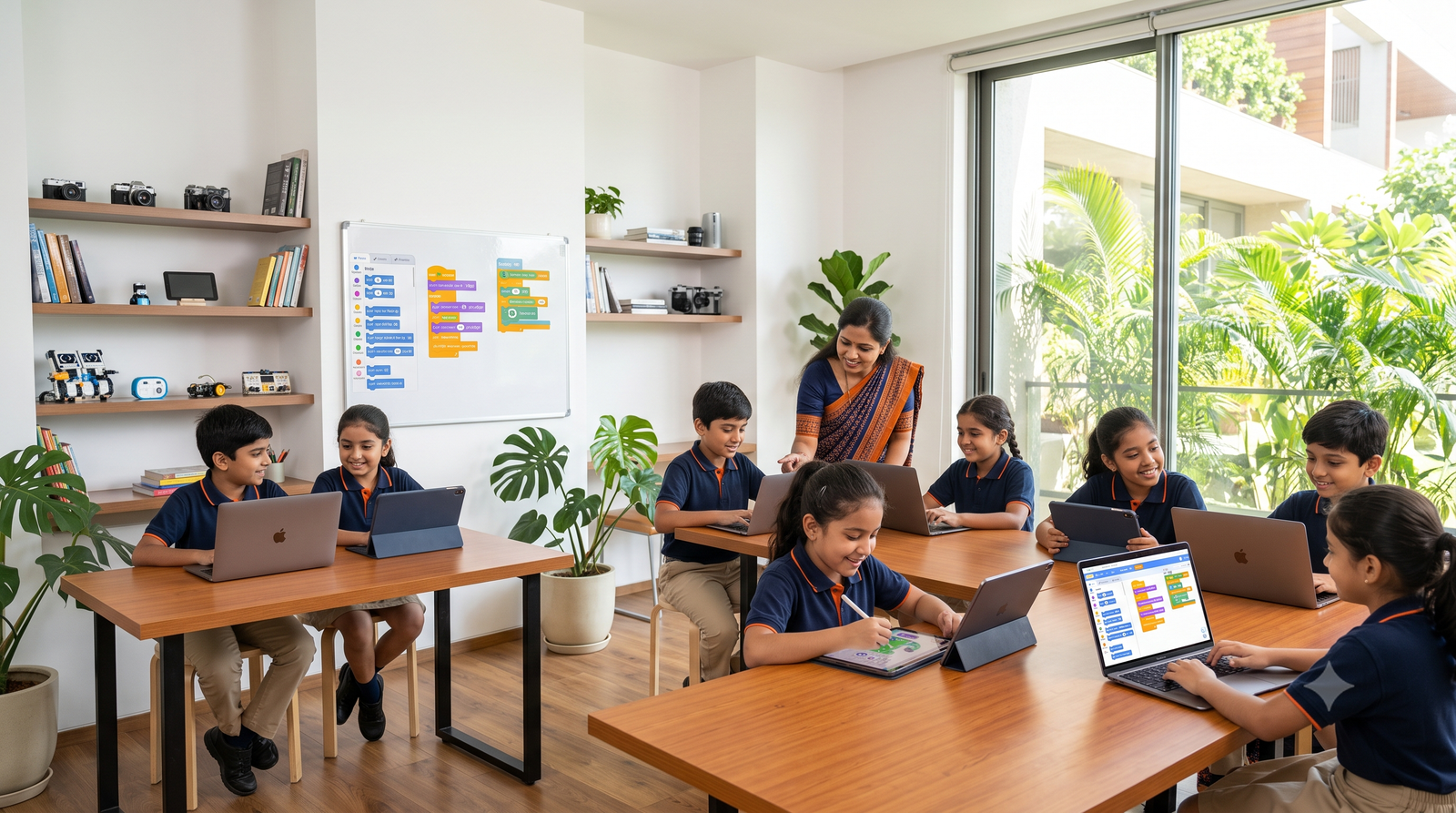
Outcomes
Learning Goals
By the end of Level 1, every child should be able to:
Confidently use a computer
Type comfortably
Create colorful designs
Use the internet safely
Create simple presentations
Understand basic AI
Organize files
Build confidence using technology independently
Curriculum
10 Hands-On Modules
Expand each module to see topics, activities, and mini projects.
Objective: Make students comfortable with computers.
1. Introduction to Computers
- What is a computer?
- Types of computers
- Desktop vs Laptop
- Tablet vs Mobile
- Where computers are used
2. Parts of a Computer
- Monitor
- CPU
- Keyboard
- Mouse
- Speakers
- Webcam
- Printer
- Scanner
- USB Drive
- Hard Disk
Activity Identify each part of a real computer.
3. Turning On & Off
- Start the computer
- Login
- Shutdown
- Restart
- Sleep Mode
- Lock Screen
Activity Each child starts and shuts down the computer.
4. Mouse Skills
- Left Click
- Right Click
- Double Click
- Drag & Drop
- Scroll
Games Mouse Maze · Balloon Pop · Puzzle Drag
5. Keyboard Basics
- Letters
- Numbers
- Space
- Enter
- Shift
- Backspace
- Caps Lock
- Arrow Keys
- Tab
- Escape
Practice Type your name.
6. Windows Basics
- Desktop
- Icons
- Taskbar
- Start Menu
- Open Apps
- Close Apps
- Minimize
- Maximize
7. Files & Folders
- What is a file?
- What is a folder?
- Create Folder
- Rename Folder
- Delete Folder
- Restore Folder
Activity Create folders: Homework · Pictures · Games · Projects
8. Saving Work
- Save
- Save As
- Open
Mini Project — My First Computer Students identify all computer parts and create their own folder structure.
Objective: Develop correct typing habits.
Finger Placement
- Home Row
- Correct Finger Position
- Keyboard Practice
Practice
- A–Z
- Capital Letters
- Numbers
- Special Characters
Speed Practice
- 1-minute challenge
- 3-minute challenge
Accuracy Practice
- Accuracy first
- Speed later
Typing Games
- Animal Names
- Fruits
- Colors
- Country Names
Fun Activities
- Type: My Name
- Type: My School
- Type: My Best Friend
- Type: My Family
Goal Reach 15–20 WPM with good accuracy.
Objective: Teach safe internet usage.
What is the Internet?
- How the Internet works (simple explanation)
- Wi-Fi
- Browser
- Search Engine
- Website
Browsers
- Chrome
- Edge
- Safari
Searching
- Animals
- Sports
- Space
- India
- Maps
- Weather
Good vs Bad Websites
- Educational
- Gaming
- Unsafe
- Advertisements
Online Safety — Never Share
- Password
- Phone Number
- Address
- School Name
- OTP
- Parents' Details
Good Digital Habits
- Ask permission
- Think before clicking
- Use strong passwords
- Do not chat with strangers
Mini Activity Find five facts about elephants.
Objective: Develop creativity.
Getting Started
- What is Canva?
- Login
- Templates
Learn the Tools
- Text
- Shapes
- Photos
- Icons
- Backgrounds
- Colors
- Fonts
Create
- Birthday Card
- Greeting Card
- Poster
- Bookmark
- Invitation
- School Project
- Timetable
- Name Tag
Editing Skills
- Resize
- Duplicate
- Delete
- Undo
- Redo
- Download
Mini Project Design your dream bedroom.
Tools: MS Paint / Paint 3D
Topics
- Brushes
- Shapes
- Colors
- Fill Tool
- Eraser
- Crop
- Resize
- Text Tool
Activities
- House
- Rainbow
- Tree
- Flag
- Cartoon
- Robot
Project — My Dream School Draw and design your dream school using Paint tools.
Tools: PowerPoint or Google Slides
Topics
- Create Presentation
- Add Slides
- Change Theme
- Insert Picture
- Insert Shapes
- Titles
- Bullets
- Animations
- Transitions
Mini Project — My Favourite Animal Create a 5-slide presentation.
Objective: Introduce AI responsibly.
What is AI?
- Google Assistant
- Siri
- Alexa
- ChatGPT
- Image AI
- Voice AI
Activities — Ask AI To
- Tell a story
- Explain planets
- Write a poem
- Solve a math problem
- Generate ideas
Rules
- AI helps us
- AI can make mistakes
- Always verify information
- Use AI responsibly
Mini Project Ask AI to create a short story, then illustrate it using Canva.
Topics
- Being kind online
- Respect others
- Cyberbullying awareness
- Fake News
- Privacy
- Screen Time
- Healthy Internet Habits
- Password Safety
- Responsible Sharing
Activity Safe vs Unsafe Quiz
Tools: Scratch Jr or Scratch
Topics
- Blocks
- Move
- Turn
- Say
- Repeat
- Events
- Simple Animation
- Games
Project Create a dancing cat animation.
Topics
- Calculator
- Calendar
- Clock
- Camera
- Voice Recorder
- Screenshot
- Clipboard
- Emoji
- Sticky Notes
Activities
- Take a Screenshot
- Record Voice
- Calculate a Grocery Bill
Final Capstone Project
My Digital Portfolio
Each student creates a personal digital portfolio that can be shared with parents during a showcase event — proof of everything they learned in Level 1.
- Personal Profile (“About Me”)
- A typed paragraph introducing themselves
- A Canva-designed poster
- A greeting card
- A PowerPoint presentation
- A Paint drawing
- A Scratch animation
- A folder structure they created
- A safe internet pledge
- An AI-generated story with their own edits and illustrations
Beyond Software
Soft Skills Integrated Throughout
Skills Practiced
- Communication and presentation
- Creative thinking
- Problem-solving
- Teamwork through pair activities
- Time management for mini projects
- Organization and file management
- Digital etiquette and responsibility
- Confidence in speaking about their work
Why It Matters
Level 1 isn’t just about learning software — it’s about helping children become comfortable, creative, and responsible digital users. This foundation prepares them for Levels 2–5, where they’ll move into web development, design, AI, and digital entrepreneurship.
Ready to Start Exploring?
Give your child a confident start with digital skills — enroll in Level 1 Digital Explorer today.